
Introduction
Who is Brendon Padjasek
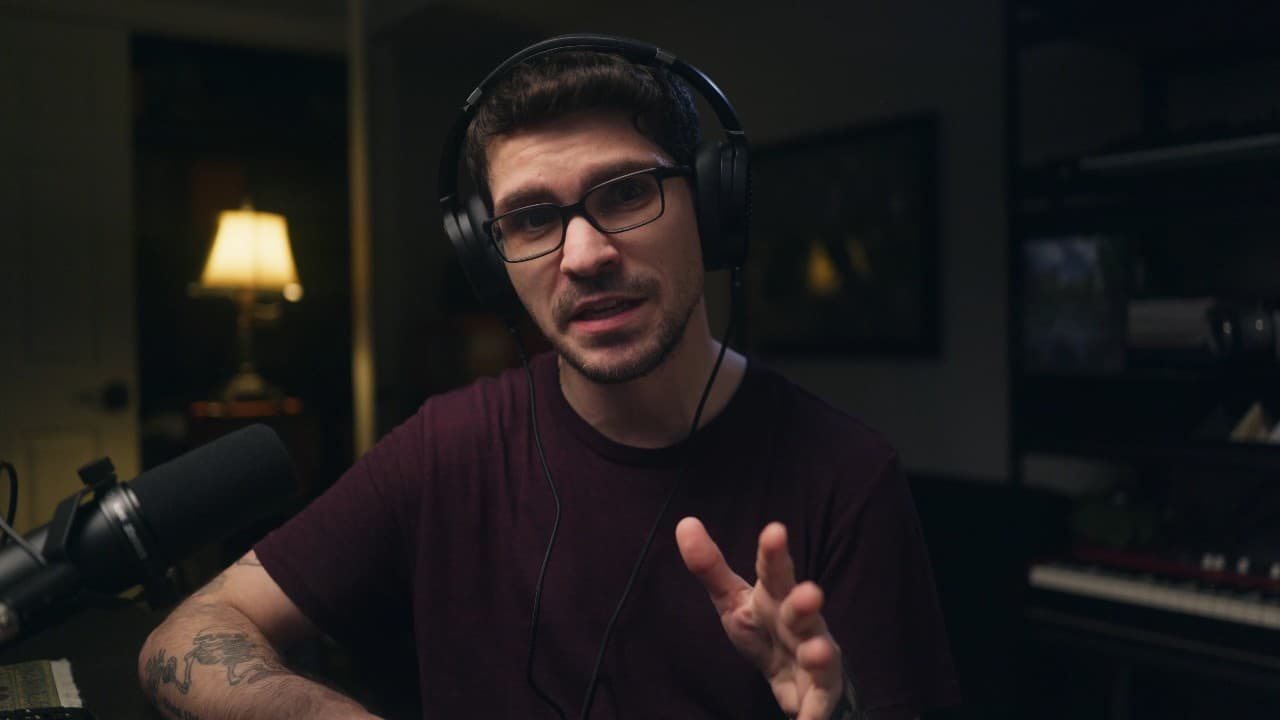
Meet Brendon, among many things: producer, multi-instrumentalist, and the vocalist of the band Structures! In collaboration with Ablaze Audio, he will show you how to use the Screamer plugin for mixing your vocals, going through the three main sections of the plugin one by one: Control, Thicken and Flavor. If you want to learn how to mix your own vocals, you have come to the right place!
Step 1
The Control section
In this video, you’ll learn how to use the Screamer Control section. This section allows you to give your vocals their initial sound. Use the lo cut and hi cut controls to make your vocals fit in the mix, use the drive and mix controls to add texture, and use the chop and release controls to control the dynamics of your vocals. After choosing your settings in the Control section, your vocals should now blend in with your mix in terms of tonality, texture and dynamics.

Step 2
The Thicken section
In this video, you’ll learn how to use the Screamer Thicken section. This section is added in parallel and allows you to make your vocals sound full and wide. Use the spread and diffuse controls to make your vocals sound bigger, and use the darken and width controls to control the tonal color and width of the parallel signal. After choosing your settings in the Thicken section, and setting the section gain slider, your vocals should now have a more massive sound.

Step 3
The Flavor section
In this video, you’ll learn how to use the Screamer Flavor section. This section allows you to add a reverb and delay tail to your vocals. Use the tail and blend controls to add reverb in parallel, use the repeats and blend controls to add a stereo delay pattern in parallel, and use the tilt and duck controls to adjust the tonal color and ducking amount of the effects tail. After choosing your settings in the Flavor section, your vocals should now have a polished and produced sound.

Conclusion
The next steps
After going through this crash-course you should be able to use the Screamer plugin to give your raw recorded vocals a modern and produced sound. Hopefully using the Screamer plugin will simplify the vocal production process for you and help you create and release great music! Of course, there is always more to learn. If you wanna go a bit deeper down the rabbit-hole of vocal production, check out the free plugins in the Ablaze Toolkit!